· RustDesk Team · Guides · 7 min read
RustDesk for Linux: The Open-Source Remote Desktop
Install and run RustDesk on Linux: .deb, .rpm, Flatpak and AppImage, X11 vs Wayland, headless and unattended access, and self-hosting the server.
Linux users have never had a huge choice of good remote desktop tools, and the ones that exist are usually either closed-source commercial products or aging VNC stacks. RustDesk sits in a different spot: it is an open-source remote desktop client licensed under the AGPL, it runs natively on all the major distributions, and you can point it at a server you host yourself. That combination — auditable code, native Linux client, and self-hostable infrastructure — is why RustDesk has become one of the go-to answers when someone asks for an open-source remote desktop for Linux.
This guide covers how to install it, the one thing that trips everyone up (X11 versus Wayland), how to get unattended and headless access working, and where the server fits in.
Installing RustDesk on Linux
RustDesk ships packages for every common Linux packaging format, so you rarely have to build from source. Grab the current release from the RustDesk releases page on GitHub or from the Linux install docs and pick the format that matches your distribution.
| Format | Best for | Auto-starts a service? | Notes |
|---|---|---|---|
.deb | Debian, Ubuntu, Linux Mint | Yes (systemd) | sudo apt install ./rustdesk-*.deb |
.rpm | Fedora, RHEL/CentOS, openSUSE | Yes (systemd) | sudo dnf install ./rustdesk-*.rpm |
| Flatpak | Any distro, sandboxed | No | flatpak install flathub com.rustdesk.RustDesk (Flathub) |
| AppImage | Any distro, portable | No | May need libfuse2 on recent Ubuntu; chmod +x then run |
| AUR | Arch, Manjaro | Depends on package | Community-maintained (rustdesk-bin, rustdesk-appimage) |
The .deb and .rpm packages are the ones to use if you want RustDesk running as a background service that survives reboots — both register and start a systemd unit automatically. The Flatpak (com.rustdesk.RustDesk on Flathub) is a sandboxed build that is convenient for desktop use but does not install a system service by default. For a distribution RustDesk doesn’t package directly, reach for the Flatpak first — because it bundles its own runtime it tends to be the most broadly compatible. The AppImage is a portable single-file alternative, but its compatibility is more hit-or-miss in practice (for example it may need libfuse2 on recent Ubuntu).
In practice RustDesk is used across Ubuntu, Debian, Fedora, RHEL/CentOS, openSUSE, Arch and NixOS, with builds for x86_64, ARM64 (aarch64) and ARM32 (ARMv7) — so it runs on ARM boards and servers as well as standard PCs.
X11 vs Wayland: the part that matters
This is the single most important thing to understand about RustDesk on Linux, because it determines whether remote control “just works” immediately or needs one small setup tweak first.
X11 (Xorg): the most direct capture path, where your distribution still offers it. Under X11, RustDesk reads the framebuffer directly and injects input directly, so capture and mouse/keyboard control are as direct as it gets and monitor changes are detected dynamically. Many display managers still let you pick “Xorg”/“X11” from a gear menu at login. Keep in mind, though, that several distributions are moving to Wayland-only and retiring the X11 session — so treat X11 as a convenience where it happens to be available, not something to design your deployment around.
Wayland: RustDesk has arguably the strongest support of any remote-desktop tool. RustDesk has supported Wayland since version 1.2.0 and has kept extending it. Because Wayland compositors don’t allow direct framebuffer access, RustDesk captures the screen through the xdg-desktop-portal service and PipeWire, and injects input via the kernel’s uinput module. Two consequences follow from Wayland’s own design — and they apply to every Wayland screen-sharing tool, not just RustDesk:
- Consent per connection. The portal shows a dialog asking you to select which display to share. That is a deliberate Wayland security feature, not a RustDesk bug — a background app cannot silently start recording your screen. Portal v4 and newer support a “restore token” so you aren’t re-prompted every single time, but the first share requires an on-screen click.
- Active session only. Wayland capture is tied to the logged-in graphical session. Capturing the Wayland login greeter isn’t supported yet — it’s in active development (PR #15420). For pre-login access today, use the headless/virtual-display configuration below, or an X11 session on distributions that still provide one.
Wayland support keeps improving — RustDesk 1.4.3 (October 2025) added multi-monitor sharing for Wayland, for example. But if you connect and see a black screen on a Wayland box, that is almost always the portal/PipeWire path not being satisfied. Our dedicated write-up on RustDesk connected but waiting for image walks through the Wayland black-screen case specifically.
Unattended access on Linux
Unattended access means connecting to a machine with nobody sitting in front of it — the classic remote-support scenario. On Linux the recipe is:
- Install via
.debor.rpmso the systemd service is registered, or click Enable Service in the app. - In RustDesk, set a strong permanent password under the connection settings (and ideally enable two-factor authentication).
- For access before or across user logins, use the headless virtual-display configuration below (the Wayland greeter gap covered above applies here).
One Wayland reality to plan for: the consent-based portal described in the Wayland section makes fully unattended capture harder than on X11 until the in-development unattended support lands, so plan on the headless virtual-display setup for hands-off machines.
Headless Linux: servers with no monitor
A very common Linux use case is a box with no display attached at all — a home server, a lab machine, a VM. Here the problem isn’t RustDesk, it’s the graphics stack: with no monitor plugged in, X or Wayland never allocates a framebuffer, so there is literally no image to capture and you get a black screen.
Three ways to give it something to render:
- A dummy plug — a cheap physical HDMI/DisplayPort “headless” dongle that makes the GPU think a monitor is attached.
- A virtual display driver —
xserver-xorg-video-dummyon X11, or a kernel-level option like VKMS. - RustDesk’s opt-in headless mode — enable it with
sudo rustdesk --option allow-linux-headless Y. Per the Headless Linux Support wiki it is disabled by default, tested mainly on Ubuntu with GNOME, and expects packages likexserver-xorg-video-dummyandlightdm. You can fetch the machine’s ID withsudo rustdesk --get-idand set a password withsudo rustdesk --password <password>.
Headless mode is still rough around the edges, so treat it as “works, with care” rather than turnkey.
Self-hosting the RustDesk server on Linux
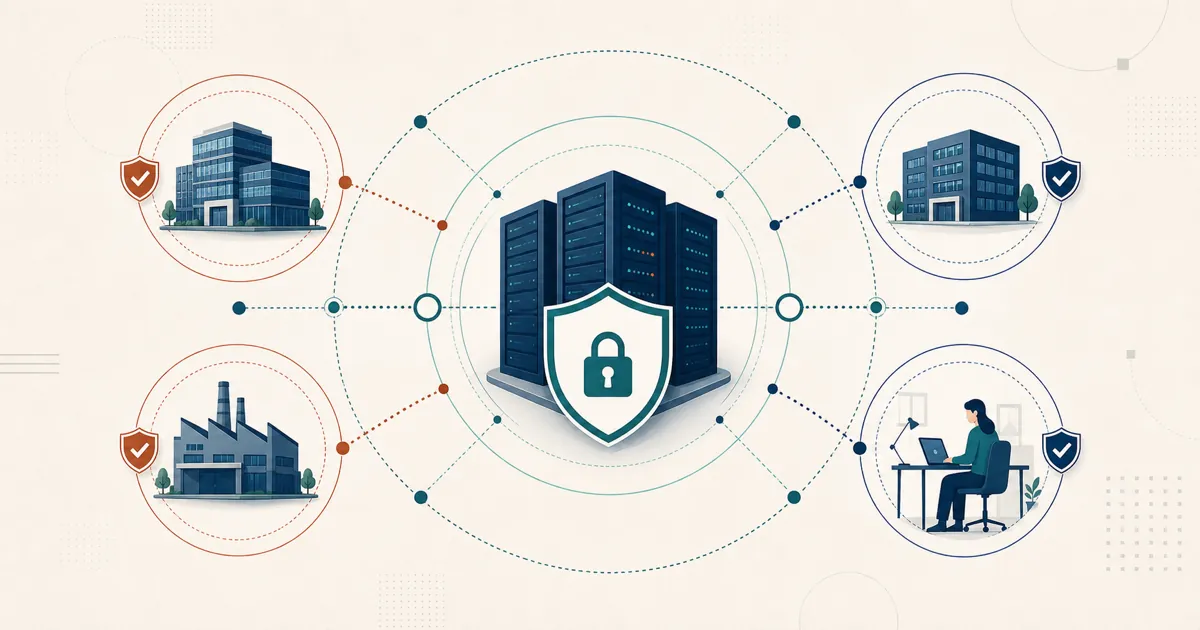
Everything above is the client. The other half of RustDesk’s Linux story is that the server — the hbbs ID/rendezvous service and the hbbr relay — is a Linux-native application and Linux is its natural home. That’s what lets you keep session brokering and relayed traffic on infrastructure you own instead of routing through a vendor’s cloud.
You have two options. The free, open-source community server runs indefinitely at no cost and covers the core connect-and-relay function. RustDesk Server Pro adds a self-hosted web console, device groups, a shared address book, a custom-branded client generator, and LDAP/Active Directory and OIDC SSO. You are not forced into Docker either — see running Server Pro without Docker for a plain-VM or bare-metal install. If you’re sizing hardware for a large fleet, plan capacity against your real concurrency and relay profile before you commit.
One note on self-hosting: the free community server and Server Pro are yours to run, patch, and secure. The hardware requirements are low and, once it is set up, upkeep is light — and RustDesk support can help if a question comes up. That ownership is the whole point. (Server Pro’s license also needs an outbound path to rustdesk.com to activate and stay licensed.)
Getting started
Install the package for your distro, set a permanent password for unattended access, and — if data sovereignty is your reason for being here — stand up the free community server. For current plan details, rustdesk.com/pricing is the source of truth, and [email protected] can talk through Server Pro. Want to see it working first? See RustDesk in action.
Frequently asked questions
Does RustDesk work on Wayland?
Yes — RustDesk has among the strongest Wayland support of any remote-desktop tool, including multi-monitor sharing added in 1.4.3. On Wayland it captures the screen through PipeWire and the XDG desktop portal, which shows a consent dialog to pick a display — in most cases the choice is remembered, so you are not asked again — and works within the active logged-in session. That consent step is a Wayland security design shared by every screen-sharing app. For pre-login or fully unattended machines today, use the headless virtual-display setup (or an X11 session where a distribution still offers one, since several are moving to Wayland-only); full unattended Wayland capture is in active development (see github.com/rustdesk/rustdesk/pull/15420).
Which package should I install on Linux?
Use the .deb on Debian, Ubuntu and Linux Mint, the .rpm on Fedora, RHEL and openSUSE, the Flatpak from Flathub for a sandboxed, broadly compatible build, or the portable AppImage as a single-file fallback. The .deb and .rpm packages register and start a systemd service so RustDesk survives reboots; the Flatpak and AppImage do not by default.
Why does my headless Linux box show a black screen?
With no monitor attached, X or Wayland never allocates a framebuffer, so there is nothing for RustDesk to capture and the viewer shows a black or waiting-for-image screen. Attach a dummy HDMI/DisplayPort plug, configure a virtual display such as xserver-xorg-video-dummy or VKMS, or enable RustDesk's opt-in Linux headless mode so a virtual display is created for you.
Can I self-host the RustDesk server on Linux?
Yes. The RustDesk server (the hbbs ID/rendezvous and hbbr relay processes) is built for Linux and is the standard way to run it. The free open-source community server runs indefinitely at no cost, and Server Pro adds a web console, device groups and a custom client generator on top. Both install on a plain Linux VM or bare-metal host.