· RustDesk Team · Troubleshooting · 7 min read
RustDesk Connected Waiting for Image: Full Fix Guide
"Connected, waiting for image" means the remote screen isn't being captured. Here's every cause — headless machines, sleep, codecs, drivers — and its fix.
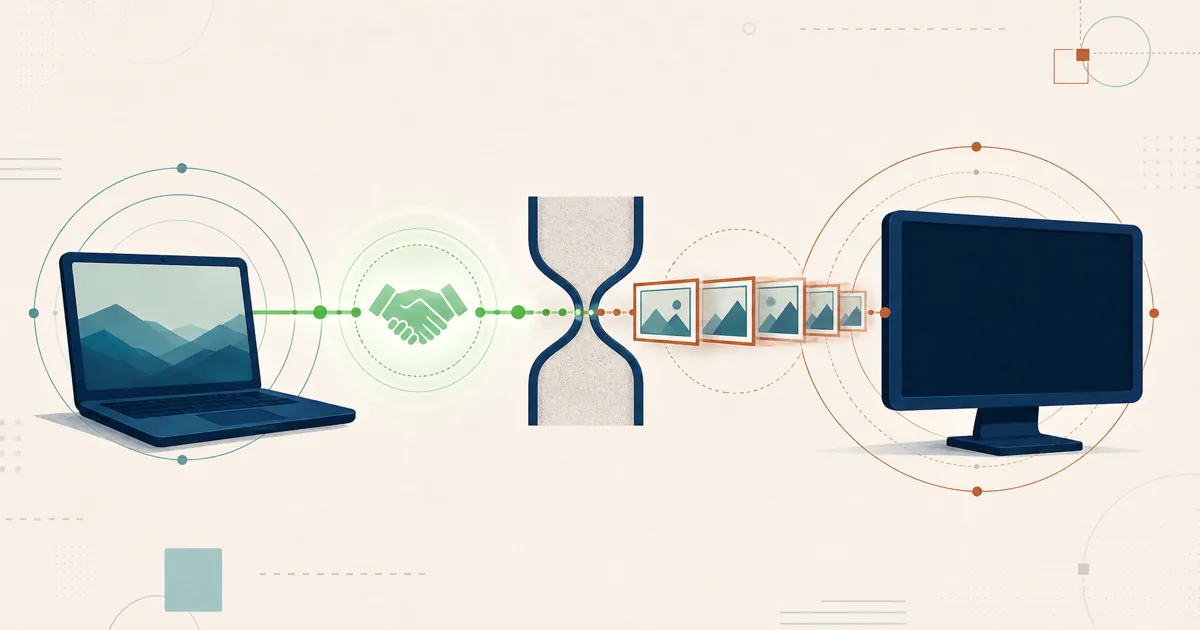
If RustDesk says “Connected, waiting for image” and then shows a black screen, the good news is that the hard part already worked: the two ends found each other and the session is established. What’s missing is the picture. Something on the remote machine isn’t producing a screen image to send. This guide walks through every known cause, from the single most common one to the edge cases, with a concrete fix for each.
The short answer
The session connected, but there is no framebuffer to capture. On a remote machine with no monitor, an asleep or locked display, or a screen the OS won’t let RustDesk record, the video stream has nothing to encode. Give RustDesk a real, awake display to capture — a monitor, an HDMI dummy plug, the right permission, or a compatible codec — and the image appears.
Start here: is there anything to capture?
By far the most reported cause is a headless machine — a server, mini-PC, or workstation running with no monitor attached, or with the display asleep. With no active display, the GPU produces no framebuffer, so RustDesk connects but has nothing to send. This pattern shows up repeatedly in the RustDesk issue tracker, including reports of black screens specifically when the target’s monitor is off and the long-running “Connected, waiting for image” thread.
Three ways to give it something to capture:
- Attach a monitor and make sure it’s powered on and awake.
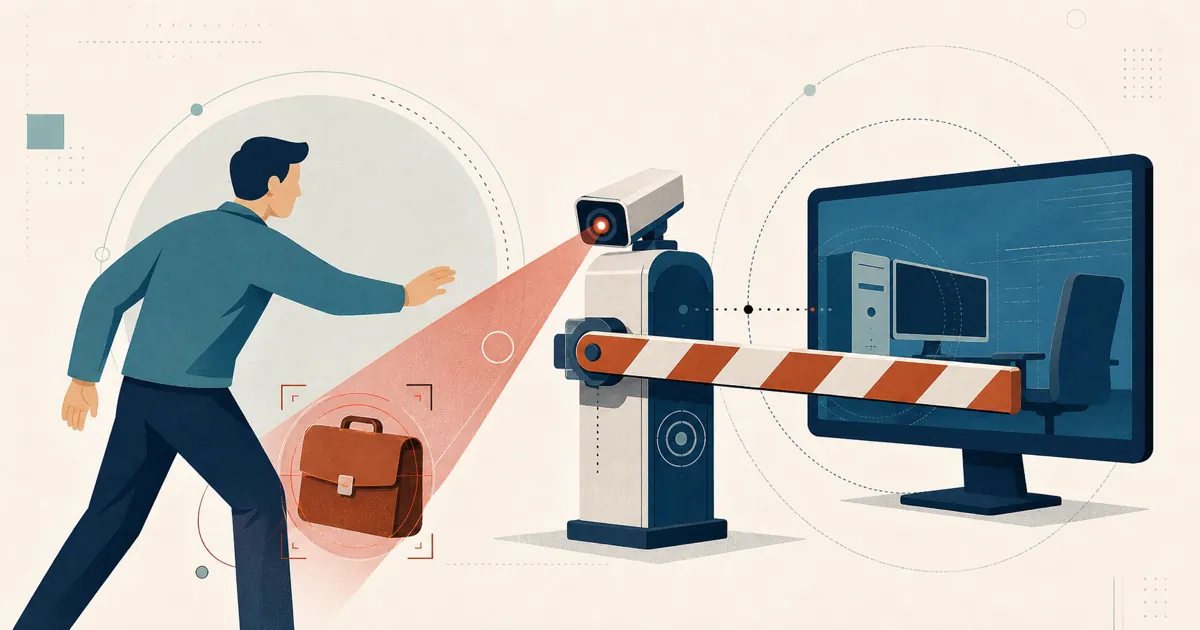
- Use an HDMI (or DisplayPort) dummy plug. These inexpensive adapters make the GPU believe a display is connected, so it keeps rendering a framebuffer for RustDesk to grab. This is the standard fix for headless desktops and home servers.
- On Linux, use the documented headless path. RustDesk supports headless Linux setups, but the configuration differs from a normal desktop session — see the Headless Linux Support wiki.
If a monitor is attached, the next suspect is that it went to sleep.
Fix by cause
| Cause | Signal | Fix |
|---|---|---|
| Headless / no display | Black screen on a server or mini-PC | Attach a monitor, add an HDMI dummy plug, or use the Linux headless path |
| Screen asleep / locked | Worked earlier, black after idle | Wake the screen; disable sleep/screensaver; on macOS stop the display sleeping in Settings |
| Missing permission (macOS) | Connects, permanent black | Grant Screen Recording in Privacy & Security; install the helper for the login screen |
| Codec mismatch | Blank or frozen image | Switch codec (VP8 / VP9 / AV1 / H.264 / H.265); fall back to a software codec |
| Hardware acceleration conflict | Black on specific GPUs | Turn off hardware codec in the session toolbar or Settings, or switch codec |
| Outdated GPU driver | Black after a driver/OS update | Update the GPU driver (NVIDIA especially) |
| Wayland session (Linux) | No consent prompt, blank | Accept the PipeWire/portal prompt and confirm the desktop portal is installed; an X11 session also works where a distro still offers one |
| Network / relay stall | Sticks on “waiting for image” | Allow TCP 21115-21117 and UDP 21116; add TCP 21118-21119 for WebSocket clients |
Screen sleep, lock, and screensavers
If it worked earlier and went black after the machine sat idle, the display went to sleep.
- Windows: set the power plan so the display and the machine never sleep during the hours you need remote access, and disable the screensaver (or set it not to require a password mid-session).
- macOS: stop the display from sleeping during the hours you need remote access — set it in System Settings → Displays (or Lock Screen / Energy settings), and keep the Mac on a power adapter, since sleep behaves differently on battery.
- Android: the screen must be on to be shared, so touch the display to wake it before connecting. Connecting from iOS to a dozing Android device with the screen off is a known “waiting for image” case — wake the target first.
macOS permissions
macOS refuses to let any app record the screen without explicit consent. If RustDesk connects but stays black on a Mac, open System Settings → Privacy & Security → Screen Recording and enable RustDesk, then restart the app. A black screen specifically at the login window means the RustDesk service/helper isn’t installed to run before a user logs in — install it for pre-login capture.
Video codec mismatch
RustDesk can encode the stream several ways, and the default doesn’t always suit the remote hardware. In the session toolbar (or Settings), switch the codec — VP8, VP9, AV1, or H.264/H.265 where hardware supports them — and watch for the image to appear. If a hardware codec produces a blank image on a particular GPU, dropping back to a software codec such as VP9 is the reliable move.
Hardware acceleration and GPU drivers
Some GPUs — NVIDIA configurations come up most often — clash with RustDesk’s hardware-accelerated capture and render paths. Two levers help:
- Turn off the hardware codec. In the session toolbar (or Settings), disable Use hardware codec so encoding falls back to a software path — this clears the black screen on many problem GPUs.
- Update the GPU driver. A black screen that started after a driver or OS update is frequently fixed by moving to a current driver, particularly on NVIDIA hardware.
Linux and Wayland
On Linux, Wayland screen capture goes through PipeWire and the xdg-desktop-portal: it prompts for consent to pick a display the first time — in most cases the choice is remembered, so it does not prompt again — and works inside an active login session. That is a Wayland security design, so by itself it does not cover the greeter or a truly headless box — though unattended Wayland capture is in active development (PR #15420). If you get a blank screen on Wayland, the fix is usually to accept the portal’s screen-share prompt and confirm xdg-desktop-portal and PipeWire are installed and running; on a headless box, use the documented headless configuration. Logging into an X11/Xorg session also avoids the portal path where a distribution still offers one — but as many distributions move to Wayland-only, fixing the portal/PipeWire path is the more future-proof approach.
Network and relay
Because the message contains the word “connected,” the session is usually already up — but the video can still stall if the relay is overloaded or a relay port is blocked. For the standard server path, make sure TCP 21115-21117 and UDP 21116 are reachable end to end. Open TCP 21118-21119 only if you use WebSocket clients. The public demo server is shared and its throughput isn’t guaranteed, so if you rely on RustDesk daily, self-hosting your own relay gives you far more consistent behavior. If the session itself is dropping or never establishing, that’s a different problem — see the RustDesk Server Pro FAQ.
Keep everything current
Old builds carry old capture bugs. Update both the controlling client and the controlled client to the latest release, and if you self-host, update the server too. Several black-screen reports simply disappear after an update on both ends.
The open-source advantage
When a black screen defies the checklist, RustDesk gives you something closed-source tools don’t: the actual capture code under an AGPL license. You (or a contractor) can read exactly how capture works on your platform, reproduce the issue, and file a precise report against the public repository — instead of waiting on a vendor’s support queue.
Fewer variables when the server is yours
Run your own relay and ID server, and the shared public infrastructure drops out of the picture — one less unknown when you are chasing a capture problem, and full control over the parts you can tune. That is a quiet bonus on top of keeping the data.
Frequently asked questions
Why does RustDesk say "Connected, waiting for image"?
The session established successfully, but the remote machine is not producing a screen image to send. The most common reason is that there is no active display to capture — a headless server with no monitor, a screen that has gone to sleep or locked, or a display the OS won't let RustDesk record. Fix the capture source and the image appears.
How do I fix RustDesk waiting for image on a headless computer?
A machine with no monitor has no framebuffer to capture, so RustDesk has nothing to send. Attach a real monitor, plug in an inexpensive HDMI dummy plug that makes the GPU think a display is connected, or on Linux use the documented headless setup (github.com/rustdesk/rustdesk/wiki/Headless-Linux-Support). Waking or keeping the display awake resolves most cases.
Does changing the video codec fix the black screen?
Often, yes. In the remote session toolbar or settings you can switch codecs — VP8, VP9, AV1, or H.264/H.265 where hardware supports them. A codec the remote hardware cannot encode will show a blank or frozen image, and falling back to a software codec such as VP9 usually restores the picture.
RustDesk shows the image on one PC but not another. Why?
That points to something local on the failing machine — an asleep or absent display, missing screen-recording permission on macOS, an outdated GPU driver, a hardware-acceleration conflict, or a codec the hardware can't handle. Work through the per-cause fixes in this guide on the machine that fails, not the one that works.
Could my self-hosted server cause "waiting for image"?
Usually the session is already connected by the time you see this message, so the server is doing its job. But an overloaded public relay or a blocked relay port can stall the video stream. For the standard server path, allow TCP 21115-21117 and UDP 21116; allow TCP 21118-21119 only if you use WebSocket clients. Consider self-hosting the relay for more consistent throughput.