· RustDesk Team · Guides · 6 min read
RustDesk Android & iOS Remote Control: What Works
How RustDesk remote-controls Android phones, turns iPhones and iPads into controllers, and why no vendor can remote-control iOS.
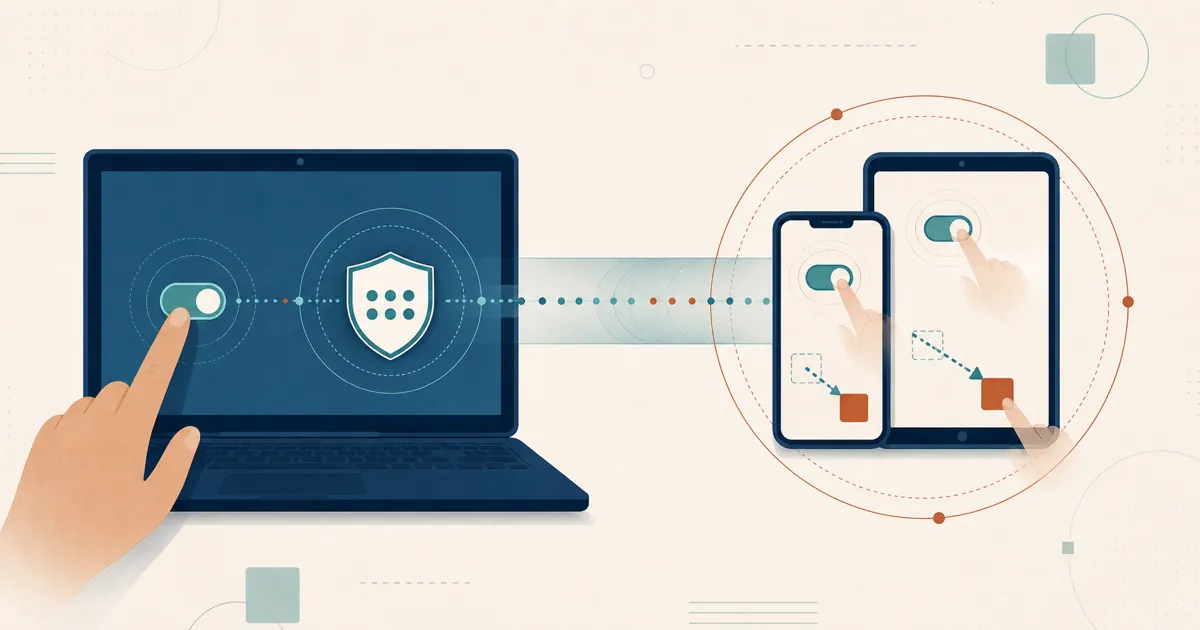
“Can I remote into a phone?” is one of the most common questions RustDesk gets, and it deserves an honest answer rather than a marketing one. The short version: RustDesk can genuinely control an Android device, both mobile apps make excellent controllers for your computers, and — the part people don’t want to hear — you cannot currently remote into an iPhone or iPad. This guide explains exactly what works, what doesn’t, and why, so you can plan around real capabilities instead of assumptions.
Both mobile apps are, like the rest of RustDesk, open source under the AGPL. Android builds are available from the official RustDesk GitHub releases and F-Droid as com.carriez.flutter_hbb, with wide device coverage — arm64, arm32, and x86_64 builds, plus a universal APK; the iOS controller is on the App Store. RustDesk is not currently distributed through Google Play: it voluntarily unpublished the Android app in response to scam abuse. Same codebase, same auditable core.
The one-table summary
| Scenario | Supported? | Notes |
|---|---|---|
| Control a Windows/macOS/Linux PC from Android | Yes | Full controller; touchpad or mouse mode |
| Control a PC from iPhone/iPad | Yes | Full controller |
| Control an Android device (as the host) | Yes | Needs screen-capture consent + accessibility service |
| Control an iOS device (iPhone/iPad as host) | No | Apple restrictions; not implemented |
| View an iOS screen remotely | No | Not supported today |
The rest of the article is just the detail behind each row.
Using your phone as a controller (the easy part)
This is the use case that “just works.” Install RustDesk on your Android or iOS device, and it becomes a full controller for any RustDesk host — your Windows desktop, your Mac, your Linux box. Enter the target ID and password, and you get the remote screen with an on-screen touchpad, a mouse mode, a software keyboard, and file transfer. Nothing special is required on the phone side because you’re only sending control, not being controlled.
If your job is “fix a computer from wherever I am,” a phone running RustDesk is a legitimately good tool, and it behaves the same as the desktop client.
Controlling an Android device (as the host)
This is where RustDesk does something most remote tools can’t: it can turn an Android phone or tablet into a controllable host. Two Android subsystems make it work, and both require explicit setup.
Screen capture. RustDesk uses Android’s MediaProjection API to capture the display. When you tap Start Service in the app, Android shows a consent prompt asking permission to record the screen — that dialog is mandatory and cannot be silently bypassed. Screen sharing requires Android 6 or newer; capturing the phone’s internal system audio requires Android 10 or newer. Until that capture permission is granted, no incoming connection can see anything.
Remote input. Seeing the screen isn’t the same as controlling it. To inject taps, swipes and key events, RustDesk registers an AccessibilityService called RustDesk Input, which you enable under Settings → Accessibility. It translates remote mouse and gesture events into Android gestures and can trigger system actions like Back, Home and Recents.
Staying alive. RustDesk keeps a foreground-service notification and, optionally, a floating overlay window so Android doesn’t kill the capture process, and it can restart the service on boot.
Now the limitations, because Android’s security model imposes real ones:
- Consent is required to start capture. Someone (or a pre-approval) has to accept the screen-recording prompt.
- The lock screen blocks input. Android does not let an accessibility service type into the secure lock screen, so if the device locks you generally can’t enter the unlock code remotely — a limitation documented by hands-on users.
- Reboots need a manual unlock. After a restart the device usually has to be unlocked in person before control resumes.
- OEM restrictions. On some manufacturers’ builds, the RustDesk Input accessibility toggle is greyed out for sideloaded apps until you grant “restricted settings” (long-press the app icon → App info → allow restricted settings). Aggressive battery managers on certain OEMs can also kill the background service.
The practical takeaway: Android control is excellent for attended support — helping someone who is holding their phone — while set-and-forget unattended access is a job the desktop host does best, because mobile operating systems restrict persistent background access. Match the platform to the job. (For desktops, the unattended access setup guide covers the real thing.)
Controlling an iOS device: what Apple allows
Here’s the part that gets asked constantly and answered vaguely elsewhere, so we’ll be direct: no remote-desktop app can remotely control an iPhone or iPad — RustDesk included. On iOS the RustDesk app is a capable controller — it connects out to control your computers — but Apple does not let any third-party app act as a remotely-controlled host on iOS.
The reason is Apple. iOS heavily restricts background execution, screen recording, and any form of synthetic input injection, which is why no third-party app offers true remote control of an iPhone. This isn’t a RustDesk oversight so much as a platform wall — iOS host support has been a repeatedly requested feature on GitHub that remains unimplemented. Apple’s broadcast APIs (ReplayKit) can in principle stream a screen, but that is app-initiated broadcasting, not something a remote party can pull — so third-party remote viewing of iOS remains unavailable, and full remote control of iOS from another device isn’t something the OS permits to third parties.
So if your requirement is specifically “remote into an iPhone,” no current remote-desktop tool can do it — it’s an iOS platform wall every vendor hits, not a RustDesk gap, as noted in our RustDesk vs AnyDesk comparison. We’d rather tell you that up front than let you discover it after setup.
A note on privacy and self-hosting
Because the mobile apps are open source and speak the same protocol as the desktop client, you can point them at your own self-hosted RustDesk server instead of the public network — so mobile sessions are brokered by infrastructure you control, ID and all. For remote-support workflows that touch personal devices, that data-sovereignty angle matters more than usual.
The trade-off is the same as always: you run and secure that server yourself — a modest task given the low requirements — and for many teams, keeping session data on your own turf is well worth it.
Getting started
Download Android builds from the official GitHub releases or install the package from F-Droid. RustDesk is not currently distributed through Google Play; the iOS controller remains available from Apple’s App Store. To control a phone, that phone must be Android — accept the screen-capture prompt and enable the RustDesk Input accessibility service. To control your computers from a phone, either mobile app works out of the box. Current plans are at rustdesk.com/pricing, and [email protected] can help with Server Pro. Want to see it first? See RustDesk in action.
Frequently asked questions
Can I remotely control an Android phone with RustDesk?
Yes. On the Android device you start RustDesk's screen-capture service (which requires an on-screen consent prompt) and enable the RustDesk Input accessibility service so remote taps and swipes are injected. Screen sharing needs Android 6 or newer; sharing internal system audio needs Android 10 or newer. Some manufacturers restrict accessibility for sideloaded apps, so you may have to allow restricted settings first.
Can RustDesk control an iPhone or iPad?
Not from any remote-desktop app — that's an iOS platform limit, not a RustDesk one. Apple's screen-recording and background restrictions don't let a third-party app be remotely controlled as a host, so no vendor offers true remote control into an iPhone or iPad. What RustDesk's iOS/iPadOS app does well is work as a controller: use an iPhone or iPad to control your Windows, macOS, Linux, and Android machines.
Can I use my phone to control my computer?
Yes. The Android and iOS RustDesk apps work as full controller clients. You can connect from either to a Windows, macOS or Linux machine and control it with an on-screen touchpad or mouse mode. This is the most reliable mobile use case and works the same as the desktop client.
Are the RustDesk mobile apps open source?
Yes. The mobile clients share the same open-source AGPL codebase as the desktop client. Android builds are available from the official RustDesk GitHub releases and F-Droid as com.carriez.flutter_hbb; the iOS controller is available from the Apple App Store. RustDesk is not currently distributed through Google Play.
Can I leave an Android device set up for unattended control?
Partially. RustDesk can keep its capture service alive with a foreground notification and restart it on boot, but the screen-capture consent, a blocked lock-screen keyboard, and needing to unlock manually after a reboot make truly unattended Android control unreliable. Treat Android control as attended support rather than set-and-forget access.