· RustDesk Team · Deployment · 5 min read
RustDesk Unattended Access: Setup Guide
Set up RustDesk unattended access the right way: a permanent password, run as a service so it starts on boot, and deploy at scale with a pre-configured client.
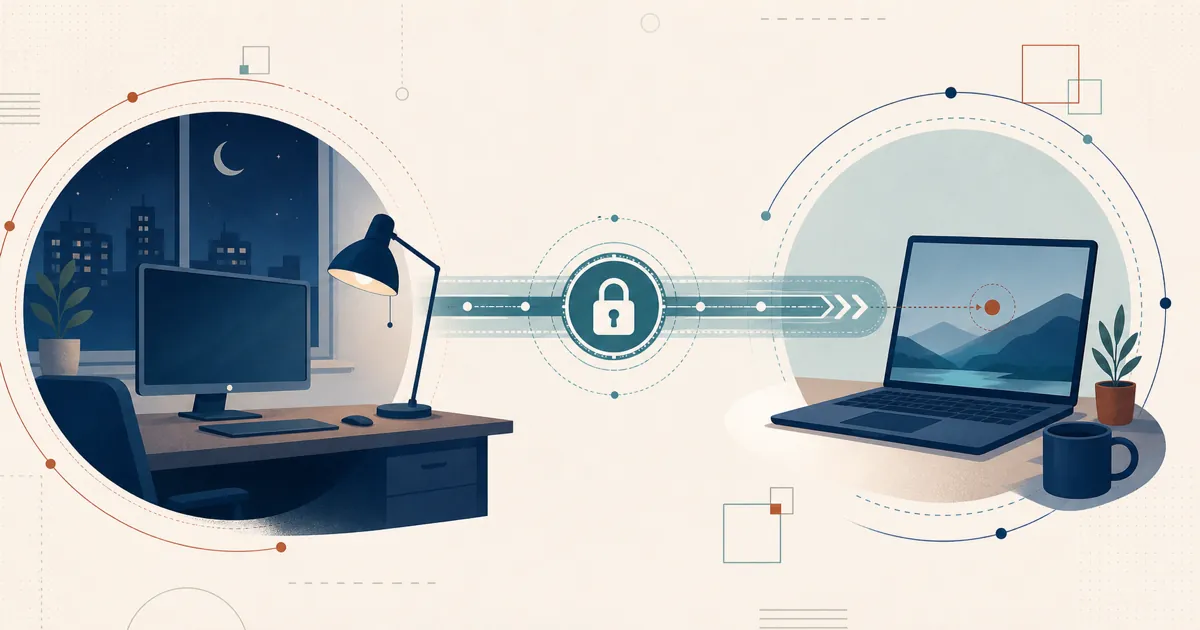
Unattended access means reaching a computer when no one is sitting in front of it — a server in a rack, a kiosk, a family member’s PC across the country. RustDesk does this well, but only if you configure two things correctly: a permanent password so no one has to approve each connection, and RustDesk running as a service so it’s available before login and after logout. This guide covers both, plus how to roll it out across a fleet.
The short answer
Set a permanent password (Settings → Security) and install RustDesk as a system service — the installed service starts with the machine. The password removes the need for a human to accept the prompt; the service makes RustDesk run independently of any logged-in user, so you can connect at any time — including at the login screen. To deploy at scale, generate a pre-configured client so every machine installs itself against your server automatically.
Step 1: Set a permanent password
By default, RustDesk shows a rotating one-time password that a person on the remote end would read to you. For unattended access you replace that with a fixed credential:
- Open RustDesk on the machine you want to reach.
- Go to Settings → Security (older builds: the password area on the main screen).
- Choose Set permanent password and enter a strong, unique value.
The RustDesk client documentation describes this as the core of unattended access. One rule worth emphasizing: do not reuse the operating-system login password. Use a dedicated, high-entropy password for RustDesk so a leak of one credential doesn’t compromise the other.
Step 2: Install as a service and start on boot
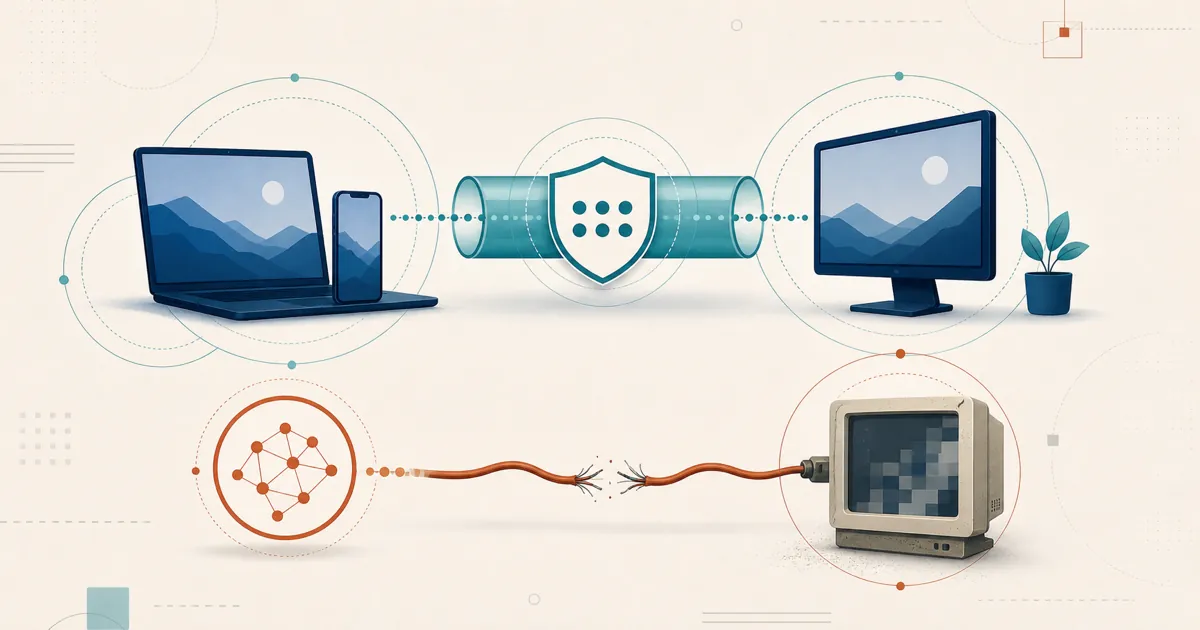
This is the step people miss. If you just run the portable .exe or .app, the session ends the moment the user logs out or a UAC/permission prompt appears — because that process only exists inside the user’s session. To be truly unattended, RustDesk must run as a background system service.
- Run the RustDesk installer (not the portable build) and complete installation.
- In Settings → General, make sure the Service is running — use Start if it shows as stopped. Once installed, the service starts with the machine automatically.
Once RustDesk runs as a service, it loads before anyone logs in, which is what lets you connect to the login screen, authenticate remotely, and even reboot and reconnect without a person present. Community write-ups on proper Windows service setup stress the same distinction: portable equals attended-only; installed service equals unattended.
Per-platform notes
| Platform | What to do | Watch out for |
|---|---|---|
| Windows | Install; keep the service running (starts with the machine) | Portable exe drops on logout/UAC; use the installer |
| macOS | Install, set permanent password, grant permissions | Screen Recording and Accessibility must be granted; login-screen capture needs the helper installed |
| Linux | Install the service package | Wayland needs an active session; for pre-login use the headless virtual-display setup, or X11 where a distro still offers one |
| Android | Set permanent password; enable capture | Screen must be awake; grant the screen-capture (MediaProjection) consent and input permission |
Windows
The cleanest path. Install, toggle the service on, set the permanent password, done. Because the service runs at boot, unattended access to the login screen and through reboots works as expected.
macOS
macOS gates screen capture and input behind permissions. After installing, open System Settings → Privacy & Security and grant RustDesk both Screen Recording and Accessibility. For access at the login window (before any user logs in), the RustDesk service/helper must be installed so it can capture pre-login — otherwise you’ll get a black screen there, the same capture issue covered in our black-screen guide.
Linux
Install RustDesk so its service component runs at boot. For a machine that sits at the login greeter, Wayland can’t capture the greeter yet — a Wayland design (not a RustDesk limit) that RustDesk is actively working to close (PR #15420). On a headless box, use the virtual-display configuration; on a desktop, an X11/Xorg session still handles it where a distribution provides one, though several are moving to Wayland-only. See RustDesk for Linux for the details.
Step 3: Deploy at scale with a pre-configured client
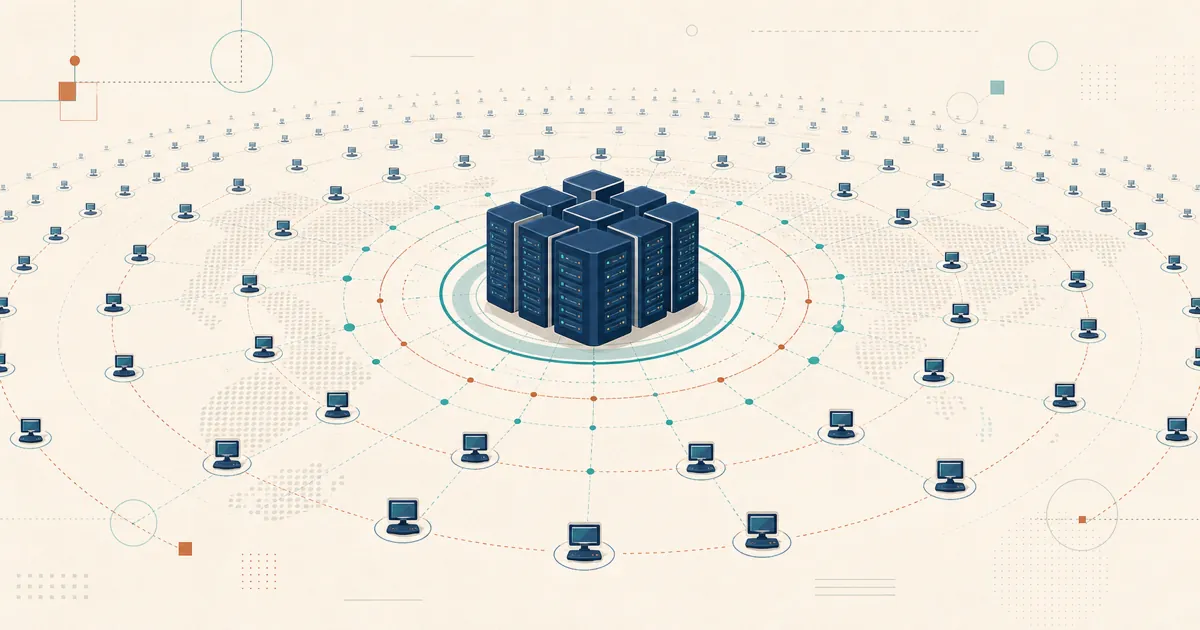
Configuring one machine by hand is fine. Configuring fifty isn’t. On Basic and higher self-hosted plans, the Custom Client Generator in the web console builds an installer with your server address, public key, and settings pre-baked, so end users type nothing. Combined with your existing deployment tool (Group Policy, Intune, an MSP RMM, a shell script), each device installs the service and registers against your server on first run.
This is where self-hosting pays off for teams: you get an unattended fleet you fully control, with no per-seat cloud metering deciding how many endpoints you’re “allowed” to reach. Set up the generator via the web console on port 21114. Note that RustDesk is licensed per login-user and managed-device, not per concurrent session, so budget by how many machines and admins you have — see what counts as a managed device.
Lock it down
Unattended access is a standing door into a machine, so treat the credentials seriously:
- Strong, unique permanent password, rotated periodically.
- Two-factor authentication and, on Pro, access controls so only authorized accounts can connect. Our write-up on per-user access control and device groups covers scoping who reaches what.
- Self-host the server-side services when you need control of rendezvous, relay, console, and stored deployment data. Endpoint credentials remain an endpoint-security responsibility. Because RustDesk is open source under AGPL, its authentication implementation can be reviewed.
Unattended access you actually control
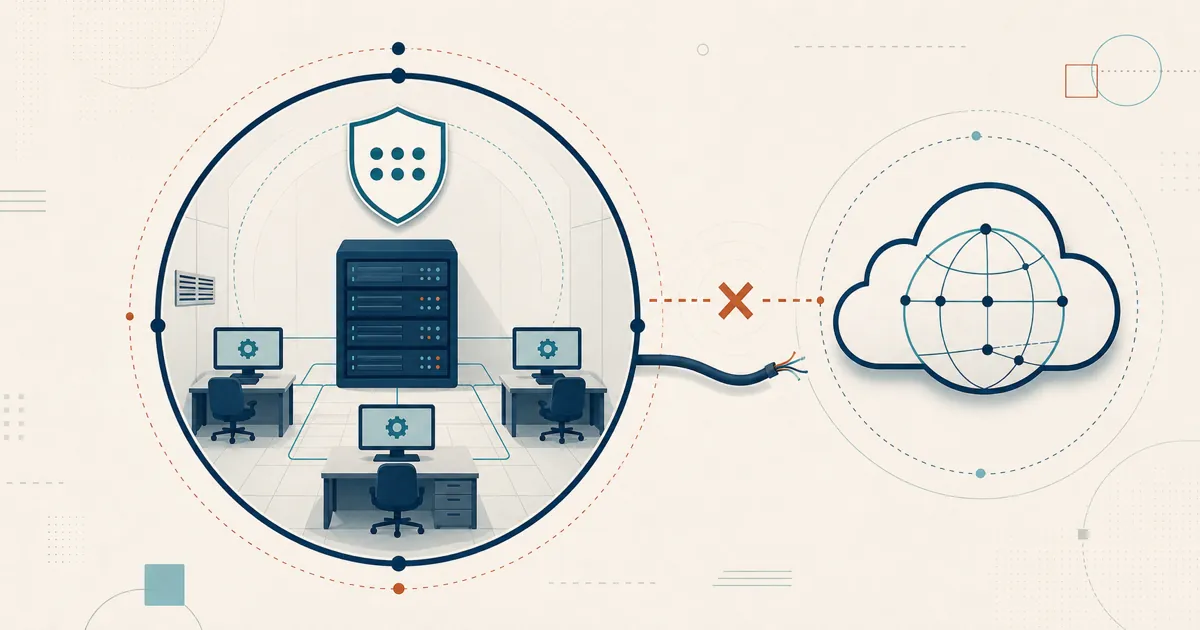
Point an always-on fleet at a server you run and the standing access to those machines stays brokered by hardware you own, not a cloud you rent. For permanent access, keeping that path in your own hands is worth the short setup.
Frequently asked questions
How do I set up unattended access in RustDesk?
Two things are required: set a permanent password under Settings, Security so you don't need someone to approve each connection, and install RustDesk as a system service so it runs before login and survives logout. With both in place you can reach the machine any time, including at the login screen, without a person present.
Why does my RustDesk connection drop when the user logs out?
That happens when RustDesk is run as a portable executable instead of installed as a service. A portable session ends when the user logs out or a UAC prompt appears. Install RustDesk (rather than running the portable executable) and keep its service enabled — the installed service starts with the system — so it runs in the background independent of any logged-in user, which is what makes unattended access reliable.
Is unattended access with a permanent password safe?
It can be deployed safely when configured well. Use a long, unique permanent password, restrict who can connect, enable available identity and access controls, patch clients, and review logs. Self-hosting controls server-side services and stored deployment data; the endpoint still protects its local credentials.
Can I deploy RustDesk unattended access to many computers at once?
Yes. On Basic and higher self-hosted plans, the Custom Client Generator produces a pre-configured installer with your server address, key, and settings baked in, so end users don't type anything. Push it with your existing deployment tooling and each device installs the service and registers against your server automatically.
Does unattended access work at the Windows login screen?
Yes, once RustDesk is installed as a service. The installed service starts with the system before any user logs in, so you can connect to the login screen, authenticate, and even trigger a reboot and reconnect. Running the portable executable cannot do this because it only exists inside a user session.